
https://github.com/LeeHyoGeun96/react-zoom-pan-pinch-SwipeGallery
GitHub - LeeHyoGeun96/react-zoom-pan-pinch-SwipeGallery
Contribute to LeeHyoGeun96/react-zoom-pan-pinch-SwipeGallery development by creating an account on GitHub.
github.com
문제 배경
모든 기능을 화살표로 조작 가능하도록 구현하려고 했는데 중요한 키보드로 줌 하고 패닝으로 조작하는 것은 빼먹은 상태였습니다.
문제 분석
├───📁 components/
│   ├───📁 ImageViewer/
│   │   ├───📄 NavigationControls.tsx
│   ├───📁 SwiperGallery/
│   │   └───📄 SwiperGallery.tsx
│   ├───📁 reactZoomPanPinch/
│   │   ├───📄 TransformViwer.tsx
│   │   └───📄 ZoomControls.tsx
│   └───📄 ImageViewer.tsx
├───📁 hooks/
│   ├───📁 ImageViewer/
│   │   ├───📄 useFocusManagement.tsx
│   │   ├───📄 useImageSlider.tsx
│   │   ├───📄 useKeyboardNavigation.tsx
│   ├───📁 TransformViwer/
│   │   ├───📄 usePanningControl.tsx
│   │   ├───📄 useSwipeMessage.tsx
│   │   ├───📄 useTransformViewerShortcuts.tsx
│   │   └───📄 useZoomControl.tsx
<간소화한 폴더 구조>
- 화살표 기능들중 좌, 우가 이미 슬라이드를 움직이는 키에 할당이 되어 있어서 해결책이 필요했습니다. 해당 기능은 useKeyboardNavigation 훅에 구현되어 있는데 isZoomed 상태는 하위 컴포넌트인 TransformVeiwer에 해당 컴포넌트에 줌 상태를 끌어와야합니다.
- 패닝 그리고 줌과 관련된 구현을 해야하기 때문에 상태를 받아와야합니다.. 줌과 패닝은 react-zoom-pan-pinch의 뷰어에서 가져오는 것이기 때문에 react-zoom-pan-pinch의 컴포넌트인 TransformWrapper에서 값을 가져와야 합니다.
- 상태를 받아와 움직임을 조작하는 함수를 만들어야 합니다, 줌한 상태에서 드래그 했을 때와 마찬가지로 줌한 상태에서 경계값에 드래그 시도가 있을 시 안내 문구를 보여줘야 합니다.
- 숏컷을 등록해야합니다.
해결
과정 1. 좌, 우 화살표 스와이핑 막기
// ImageViewer
const [isZoomed, setIsZoomed] = useState(false);

useKeyboardNavigation({
    isZoomed: isZoomed,
  });

// TransformViwer
  useEffect(() => {
    setIsZoomed(isZoomed);
  }, [isZoomed, setIsZoomed]);
방법:
ImageViewer에서 isZoomed 상태를 만들고 setIsZoomed를 내려보내어 TransformViwer에서 zoom 상태가 업데이트 될 때마다 업데이트 되게 했습니다.
그리고 그 값을 useKeyboardNavigation 훅에 전달하여 isZoomed가 true 일경우 스와이프 동작을 막았습니다.
과정 2. 상태 가져오기
 //TransformViwer

   const { debouncedHandlePanning, handlePanningStop, handleKeyboardPanning } =
    usePanningControl({
      transformRef: transformRef.current,
   });

 <TransformWrapper
  onInit={(ref) => {
    transformRef.current = ref;
	}}
 >
방법:
react-zoom-pan-pinch의 TransformWrapper의 onInit에서 처음 렌더링 될 때 상태를 제공합니다.
받은 상태를 이용하여 확대 축소 등을 하거나 현재 줌이 어떻게 되었는지 위치가 어디인지 등을 알 수 있습니다.
그래서 onInit을 ref값을 받아와 usePanningControl 훅에 넣어줬습니다.
과정 3. 기능 구현하기
// useZoomControl

const customZoomIn = useCallback(() => {
    if (!isCurrentImage) {
      return;
    }
    transformRef.current?.zoomIn(0.5);
    setTimeout(() => {
      if (transformRef.current) {
        setIsZoomed(transformRef.current.state.scale > 1.05);
      }
    }, 100);
  }, [isCurrentImage]);

  const customZoomOut = useCallback(() => {
    if (!isCurrentImage) {
      return;
    }
    transformRef.current?.zoomOut(0.5);
    setTimeout(() => {
      if (transformRef.current) {
        setIsZoomed(transformRef.current.state.scale > 1.05);
      }
    }, 100);
  }, [isCurrentImage]);

  const customResetTransform = useCallback(() => {
    if (!isCurrentImage) {
      return;
    }
    transformRef.current?.resetTransform();
    setTimeout(() => {
      setIsZoomed(false);
    }, 100);
  }, [isCurrentImage]);

  const customSetTransform = useCallback(
    (positionX: number, positionY: number) => {
      if (!isCurrentImage) {
        return;
      }
      transformRef.current?.setTransform(
        positionX,
        positionY,
        transformRef.current.state.scale,
        0.2
      );
    },
    [isCurrentImage]
  );

  // usePanningControl
const handleKeyboardPanning = useCallback(
    (direction: "left" | "right" | "up" | "down", event: KeyboardEvent) => {
      if (!isZoomed || isPanningRef.current || !transformRef || !isCurrentImage)
        return;

      const ref = transformRef;

      const { state, instance } = ref;

      if (!instance.wrapperComponent) return;

      // 이동 거리 계산 (확대 비율과 키 조합에 따라 조정)
      const panStep = calculatePanStep(state.scale, event) || 0;

      // 현재 위치
      const currentX = state.positionX;
      const currentY = state.positionY;

      // 이미지 경계 계산
      const wrapperWidth = instance.wrapperComponent.offsetWidth;
      const wrapperHeight = instance.wrapperComponent.offsetHeight;
      const contentWidth = wrapperWidth * state.scale;
      const contentHeight = wrapperHeight * state.scale;

      // 경계값 계산 (약간의 여유 공간 추가)
      const maxPositionX = 0;
      const minPositionX = Math.min(0, -(contentWidth - wrapperWidth));
      const maxPositionY = 0;
      const minPositionY = Math.min(0, -(contentHeight - wrapperHeight));

      // 새 위치 계산
      let newX = currentX;
      let newY = currentY;

      switch (direction) {
        case "left":
          newX = Math.min(maxPositionX, currentX + panStep);
          break;
        case "right":
          newX = Math.max(minPositionX, currentX - panStep);
          break;
        case "up":
          newY = Math.min(maxPositionY, currentY + panStep);
          break;
        case "down":
          newY = Math.max(minPositionY, currentY - panStep);
          break;
      }

      // 애니메이션 적용하여 부드럽게 이동 (라이브러리의 setTransform 함수 사용)
      if (setTransform) {
        setTransform(newX, newY); // 200ms 애니메이션
      } else if (instance.setTransformState) {
        // 대체 메서드가 있는 경우 사용
        instance.setTransformState(newX, newY, state.scale);
      }

      // 경계 도달 상태 업데이트
      const threshold = 1;
      if (Math.abs(newX - maxPositionX) < threshold) {
        boundaryReachedRef.current = "right";
      } else if (Math.abs(newX - minPositionX) < threshold) {
        boundaryReachedRef.current = "left";
      } else {
        boundaryReachedRef.current = null;
      }

      // 경계에서 계속 이동하려고 할 때 메시지 표시
      if (
        (direction === "right" && boundaryReachedRef.current === "left") ||
        (direction === "left" && boundaryReachedRef.current === "right")
      ) {
        showSwipeMessage();
      }
    },
    [
      isZoomed,
      showSwipeMessage,
      calculatePanStep,
      isCurrentImage,
      setTransform,
      transformRef,
    ]
  );
방법:
- 줌과 관련된 코드는 useZoomControl 훅에 구현하였고 패닝과 관련된 코드는 usePanningControl에 넣어 구현하였습니다.
- 줌과 관련된 코드 앞에 custom이 붙은 이유는 라이브러리에서 기본적으로 제공하는 함수가 있었기 때문입니다. 하지만 그 함수를 통해 zoom을 컨트롤 하면 휠을 이용해 줌을 했을 때와 달리 scale 값이 업데이트 되지 않아 줌 상태를 전달하는데 에러사항이 있었습니다. 그래서 setTimeout을 사용해 isZoomed 상태를 업데이트 해주었습니다.
- setTimeout(() => { if (transformRef.current) { setIsZoomed(transformRef.current.state.scale > 1.05); } }, 100);
과정 4. 숏컷 등록하기
export function useTransformViewerShortcuts({
  zoomIn,
  zoomOut,
  resetTransform,
  isCurrentImage,
  handleKeyboardPanning,
}: TransformViewerShortcutProps) {
  useEffect(() => {
    const handleKeyDown = (e: KeyboardEvent) => {
      if (
        !isCurrentImage ||
        e.target instanceof HTMLInputElement ||
        e.target instanceof HTMLTextAreaElement
      ) {
        return;
      }

      switch (e.key) {
        case "+":
          zoomIn();
          break;
        case "-":
          zoomOut();
          break;
        case "0":
          resetTransform();
          break;
        case "ArrowLeft":
          handleKeyboardPanning("left", e);
          break;
        case "ArrowRight":
          handleKeyboardPanning("right", e);
          break;
        case "ArrowUp":
          handleKeyboardPanning("up", e);
          break;
        case "ArrowDown":
          handleKeyboardPanning("down", e);
          break;
      }
    };

    window.addEventListener("keydown", handleKeyDown);
    return () => window.removeEventListener("keydown", handleKeyDown);
  }, [zoomIn, zoomOut, resetTransform, isCurrentImage, handleKeyboardPanning]);
}
방법:
zoom과 panning에 관련된 단축키는 해당 파일에 따로 구성하였습니다
지금 프로젝트에는 존재하지 않지만 만약 이 이벤트가 input이나 textArea에서 작성중일 때 발생하는 이벤트일 경우 동작하지 않게 만들었습니다
성능 향상
isCurrentImage 활용
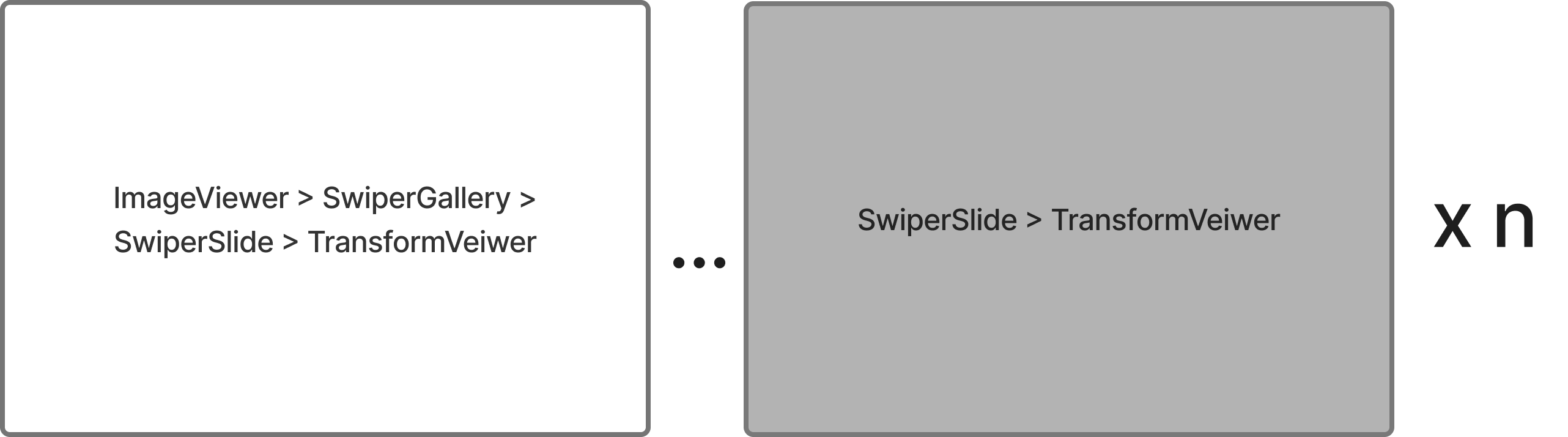
위의 그림을 보면 알 수 있듯이 SwiperSlide가 사진의 개수만큼 만들어집니다
마찬가지로 내부의 훅들도 사진의 개수만큼 등록이 됩니다.
처음에는 그 사실을 고려 안하고 코드를 짰는데 키를 입력했을 때 내부에 있는 모든 슬라이드가 작용을 해서 버벅임이 일어났었습니다.
그 이후 isCurrentImage를 활용하여 내 이미지가 아닐 경우 요청을 넘겨버리게 가드를 설치하여 성능 향상을 이뤘습니다.
'개발 > 기록' 카테고리의 다른 글
| zoom & swipe image Viewer: 사용자에 따라 단축키 다르게 설정하기 (0) | 2025.04.01 |
|---|---|
| zoom & swipe image Viewer: 툴팁 구현 (0) | 2025.03.31 |
| zoom & swipe image Viewer: 과도한 음성 텍스트 정리하기 (0) | 2025.03.31 |
| 중고 자동차 사이트 이미지 뷰어 개선 프로젝트: zoom & swipe image Viewer 개발 (1) | 2025.03.27 |
| zoom & swipe image Viewer: tab index 문제 해결 (0) | 2025.03.27 |